Getting stuck sending phone files to a computer is usually not "no way" but "wrong method for the scene." Ask three things first: how big is the file, are both devices on the same WiFi, do you care about privacy and quality—once those are clear, the method follows.
What Are the Main Ways to Send Phone Files to a Computer?
There are five common paths: USB cable, messaging app file transfer, cloud storage, email, and LAN direct transfer. The root difference is which route data takes: cable and LAN direct transfer stay local and never hit the public internet; messaging, cloud, and email upload to a third-party server first, then the other side downloads. That data path drives speed, quality, and privacy—and underpins every choice below.
Many people default to a chat app because it is already open—but chat is built for messages, not file transfer: compression, size limits, and files passing through the provider's servers. The handiest option is not always the right one.
No Cable—What Is the Least Hassle Option?
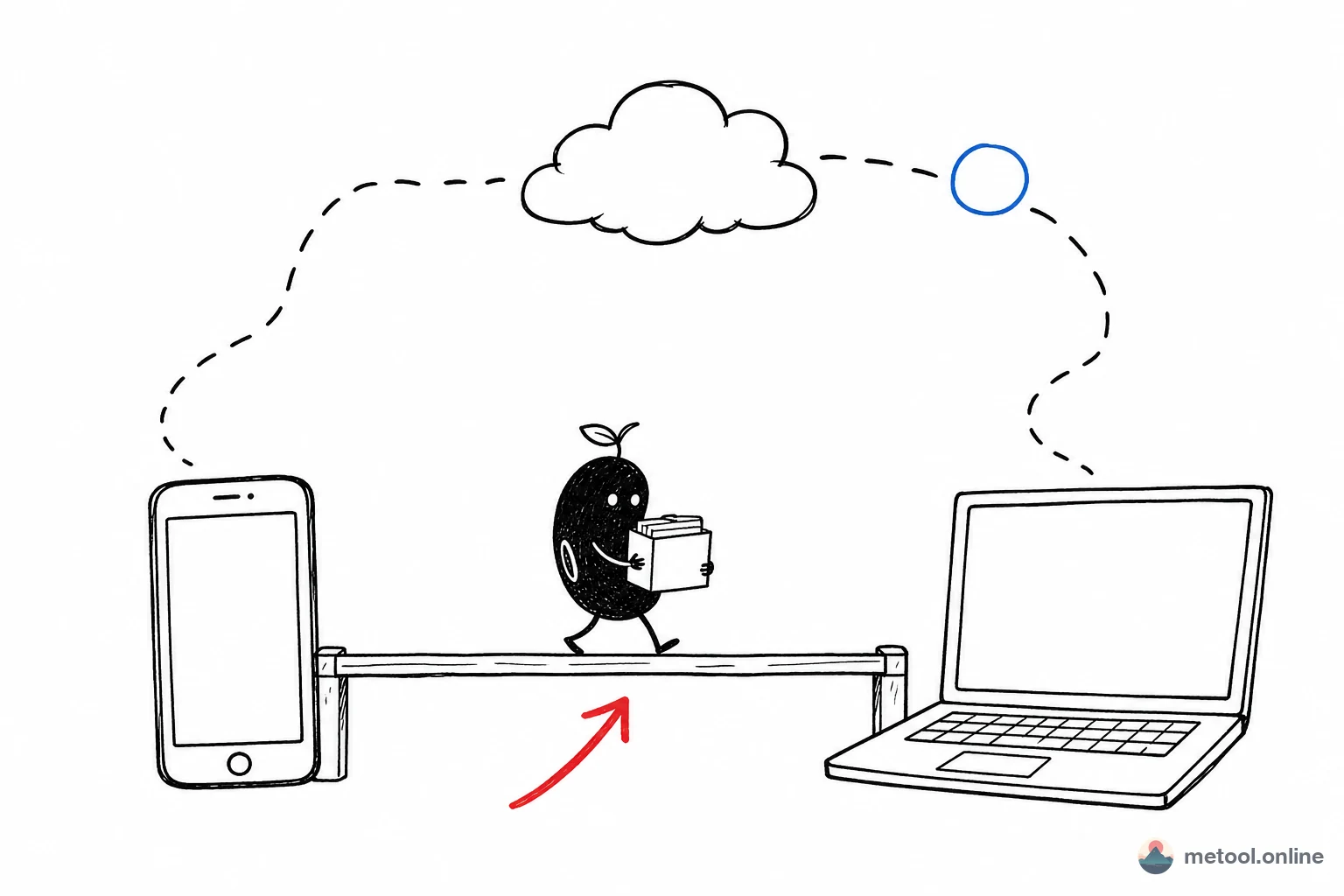
If phone and computer share the same WiFi, LAN direct transfer is usually least hassle: both browsers establish a peer-to-peer link; files move over the local network with no intermediate server. Concrete benefits:
- Fast: limited only by router and network hardware, not two public-internet round trips like cloud upload-then-download;
- No quality loss: original files, no image compression or video re-encoding like many chat apps;
- Low friction: no app install, no account—open a page on each device, scan a QR code or enter a pairing code.
The cross-device transfer tool follows this path: open the page on phone and PC, connect, pick a file, send—the other side receives immediately. It fits "a few photos, one video, a snippet of text, temporarily, without installing software or signing in." Close the page when done; nothing stays on a server.
Very Large Files or Different Networks—Then What?
If both devices are not on the same WiFi, or you need to move multi-GB files for long-term storage, LAN direct transfer does not apply. Two cases:
- Different networks, sharing with someone else: cloud share link or email attachment (watch attachment limits—often 25–50 MB). Cost: upload to a third party, possible compression or retention.
- Your own devices, huge files, maximum reliability: USB cable remains most dependable. Direct USB ignores network jitter; tens of GB stay stable. Tradeoff: find the cable; phone may need "file transfer" mode, not charge-only.
Simple rule: same WiFi → direct transfer; cross-network → cloud/email; huge and must be stable → cable.
How to Choose Among the Options?
| Method | Best for | Speed | Quality | Privacy |
|---|---|---|---|---|
| LAN direct transfer | Same WiFi, temporary, privacy-sensitive | Fast | Original, uncompressed | No server relay |
| USB cable | Very large files, long-term, reliability | Fastest and most stable | Original | Fully local |
| Messaging file transfer | Small files, quick send | Moderate | Often compressed by default | Via third-party server |
| Cloud storage | Cross-network, save or share | Slow (two public hops) | Can keep originals | Uploaded to cloud |
| Email attachment | Cross-network, small files | Moderate | Depends on compression | Via mail server |
An Often-Missed Detail: Quality and Original Files
Many people notice photos "got blurry" after transfer—almost always default chat compression. To keep originals: (1) enable "original image/file" when sending through chat; (2) for quality-sensitive assets (design files, video footage, RAW photos), prefer non-compressing channels—cable or LAN direct transfer. Creators and designers feel this hardest: pick the wrong channel and lost detail cannot be recovered in post.
Summary
There is no single "correct" way to move phone files to a computer—only what matches the moment: same WiFi, temporary, care about privacy and quality → LAN direct transfer is least hassle; cross-network sharing → cloud; huge files and stability → cable; chat only for small quick sends and remember originals. Judge file size, network, and privacy first, then pick the channel—more efficient than reflexively opening a chat app every time.