Auto screen sleep is good for battery—the problem is it ignores context: you are waiting for AI to finish code, or casting a browser demo to a room, and the screen goes black. What you need is not "never sleep forever" but "stay on for now, then revert"—pick wrong and you either forget and drain battery daily, or spend time installing software.
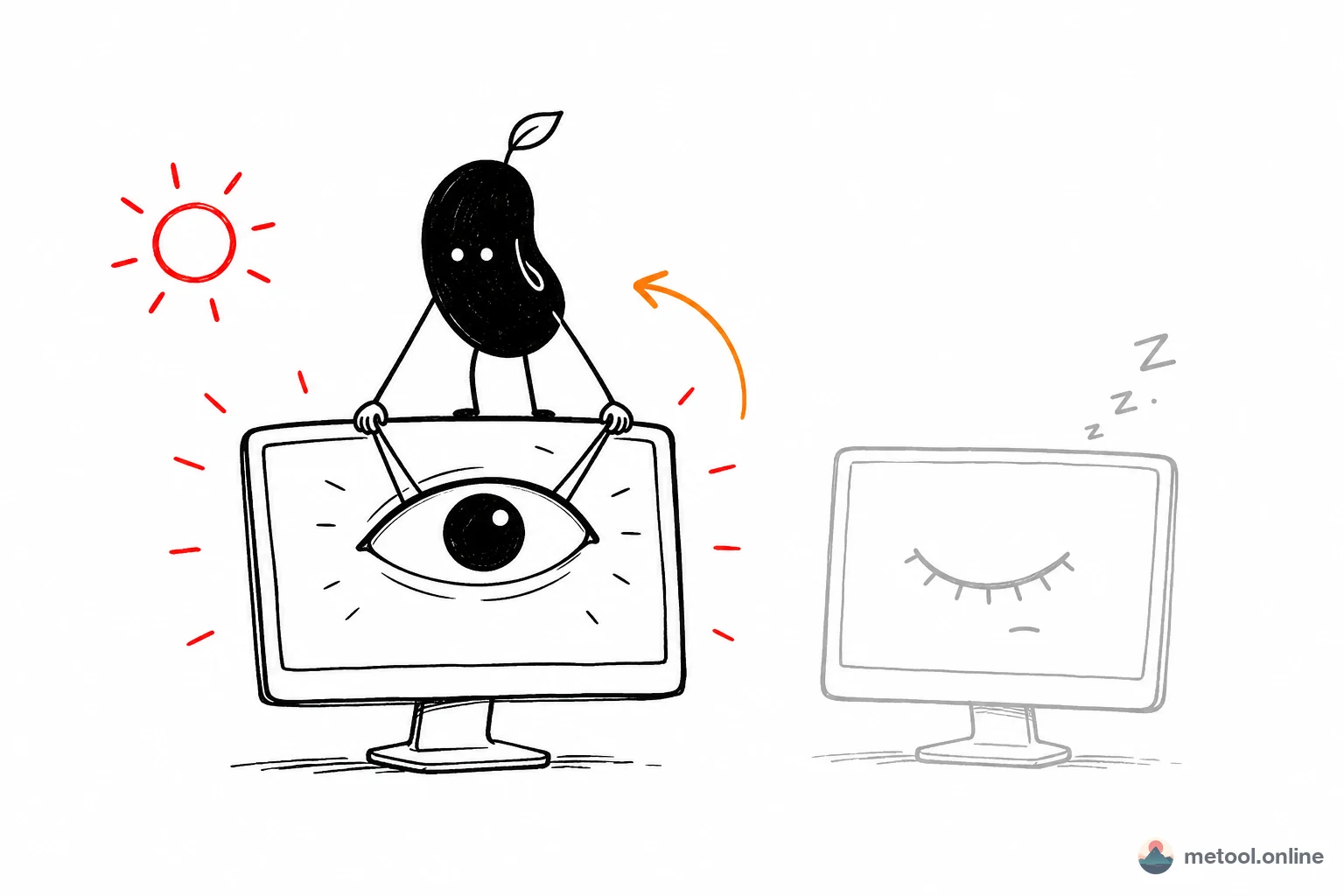
Why Does the Screen Keep Going Black?
Auto sleep is the OS power policy: after a period with no keyboard or mouse input, the display dims, then may lock or sleep. Timeout lives in system settings—often a few minutes by default. The catch: the OS tracks input, not attention. Staring at progress or presenting via cast without touching anything reads as "user left." Every keep-awake method is essentially telling the system "still here, don't sleep"—they differ in mechanism and scope.
Does Changing System Settings to "Never Sleep" Work?
Yes, but it solves a local temporary need with a global long-term switch—and the cost shows:
- Easy to forget to revert: set to never, finish the task, leave it—screen stays on, laptop battery drains;
- Mobile often has no "never": many phones/tablets cap at a few minutes or 30 minutes max;
- Too coarse: you want 20 minutes while a build runs, but all-day every scenario stays awake.
System settings fit long-term global needs (e.g. a dedicated monitoring display), not one-off moments.
Temporary Need, No Software Install—What Is Easiest?
Easiest for temporary keep-awake: a browser keep-awake page—open, toggle, screen stays on; close, switch away, or press ESC and everything reverts without touching system settings. Under the hood: the standard Screen Wake Lock API, no install, works cross-platform.
The keep screen awake tool follows this path and adds two practical touches: optional auto-off timer (e.g. 30 minutes so you do not forget) and optional white/black/AI-work-video background. Demo with keep-awake on and the AI coding video background selected:
Best for "use and go" moments:
- Full-screen while waiting for Cursor, Claude Code, Codex, or similar to finish—no mid-run black screen;
- Dual monitor: keep a page awake on the second display while working on the primary;
- Browser demo cast to a projector or meeting room.
When Does It Not Apply?
One hard boundary: the page must stay visible in the foreground. Browsers release Wake Lock when the page is hidden—for power and security—so these cases are out of scope:
- Switch to PowerPoint, Keynote, Zoom, etc. and expect keep-awake in the background;
- Switch to another browser tab and still want awake;
- Need global permanent keep-awake.
Use system settings or system tools: Caffeine (macOS), PowerToys Awake (Windows), and similar.
How to Choose Among Three Approaches?
| Approach | Best when | Tradeoff |
|---|---|---|
| System settings | Long-term, global keep-awake | Easy to forget revert; mobile may lack "never" |
| Caffeine / PowerToys etc. | Background keep-awake, not browser-bound | Install required; permissions may block in some environments |
| Browser keep-awake page | Temporary, zero install, auto-revert | Page must stay foreground-visible |
One-line rule: is the need "temporary + this page visible"? Yes → browser keep-awake. Need awake while using other apps → system settings or dedicated software.
Summary
Fixing "screen keeps going black" starts with permanent vs for-now. Long-term global → system settings; background or cross-app → Caffeine-class tools; temporary, no settings change, auto-revert → browser keep-awake page—cross-platform, zero install, reverts on close. Only requirement: the page stays visible in the foreground.